EXR file workflow for Blender 5.1 and After Effects 2026
Getting Blender EXR files to look right in After Effects is hard.
There were some good tutorials out there, but upon upgrading to Blender 5.1 I ran into problems, especially since I wasn’t ready to adopt an ACES workflow.
Problem 1
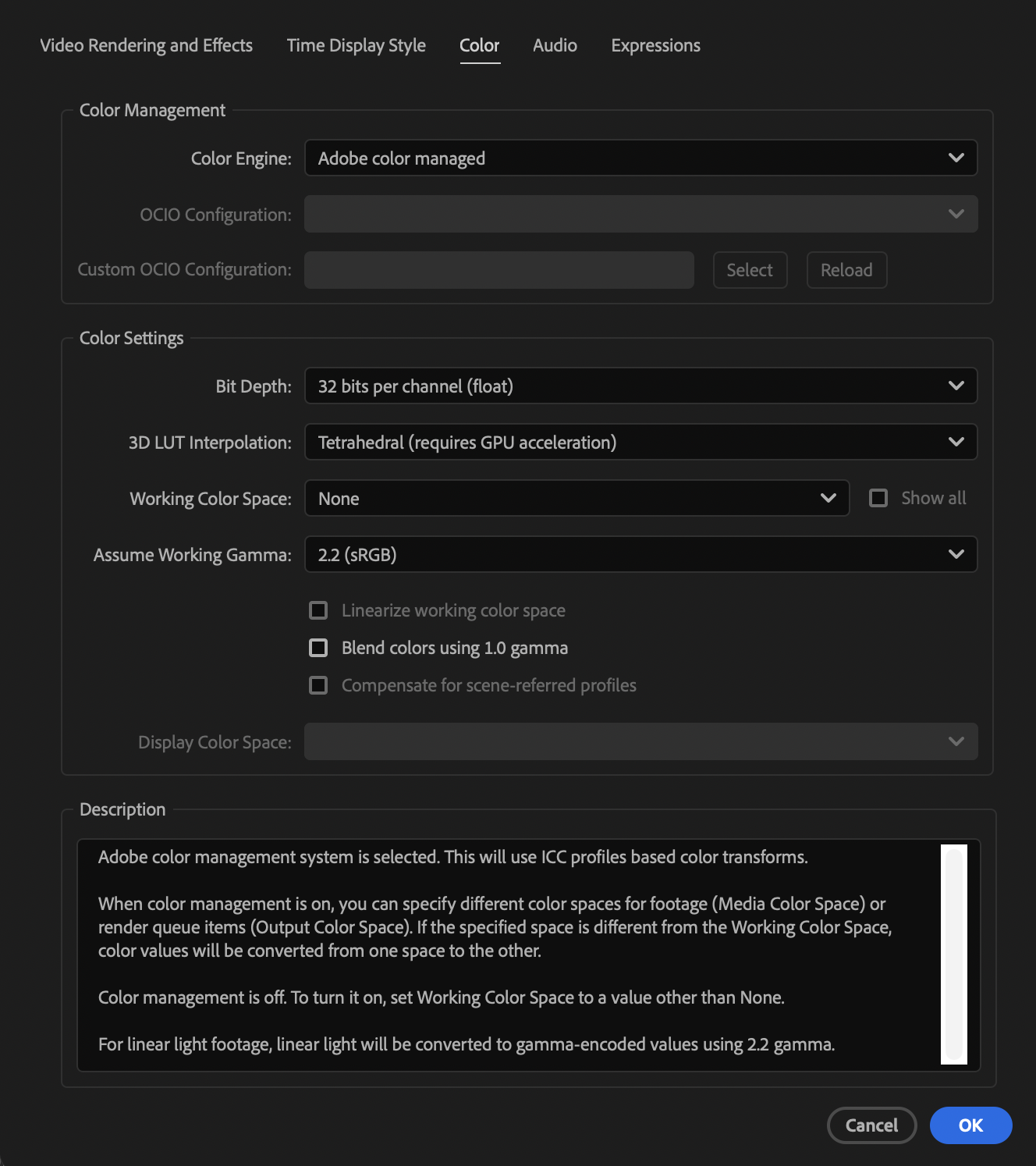
I wanted to stay in the “Adobe color managed” Color Engine and not have to use ACES, but still be able to use Blender color science in After Effects. Especially since I wanted to use the new Khronos PBR look.
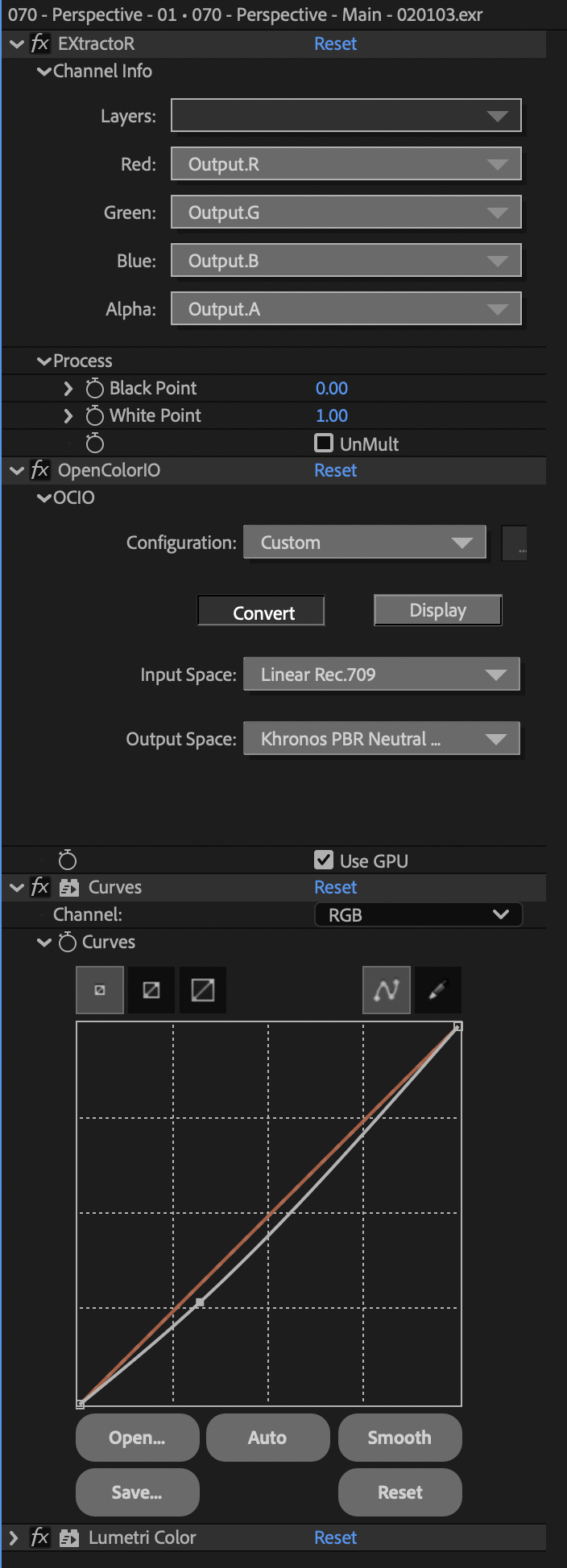
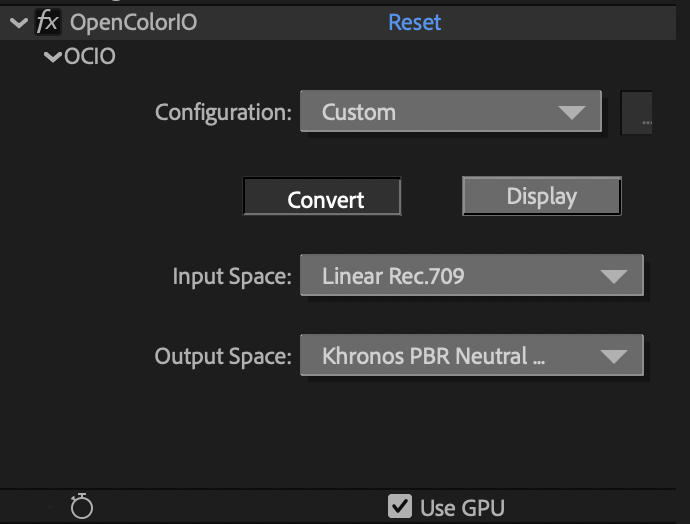
Solution: The OpenColorIO plugin for After Effects is available on fnord.com, about halfway down the page. Follow the install instructions, but when you come to the info about the config.ocio file you have to replace that with Blender’s config.icio file (keep reading if you have issues with that).
Brendan at fnord offers this great resource for free. He notes it’s not needed anymore because of native OCIO support in After Effects, but I don’t like how Adobe implemented it in AE 2026, so his plugin still feels very helpful.
Problem 2
When I tried to load the Blender config.ocio file into the OpenColorIO plugin in After Effects, it kept giving me an error and crashing AE.
Solution: Don’t use the Blender 5.1 config.ocio file. Instead use an older Blender 4.x version of the config.ocio file.
Problem 3
On Mac you’re not able to access the config.ocio file as the Blender application is grayed out when you’re in the load file dialog box.
Solution: Copy the config.ocio file somewhere that’s easy to access along with the luts and filmic folders that are next to it.

Configuration Images